


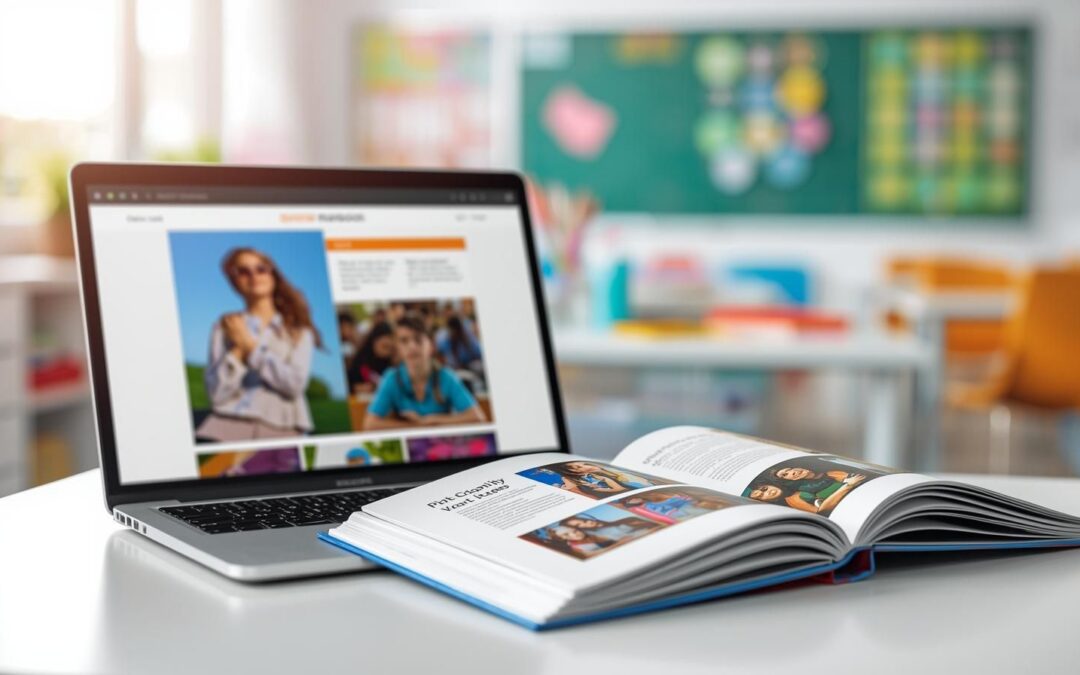
If you’ve ever finalized a beautiful spread only to spot a blurry photo during proofing, you know the frustration. Resolution issues are one of the most common challenges in yearbook production—and they almost always seem to appear at the worst possible time.
The tricky part? Most resolution problems don’t look like problems at first. Here’s why they show up late—and how to stop them early.
1. Screens Are More Forgiving Than Print
On a computer screen, almost any image can look sharp. That’s because screens display images at a much lower resolution than what professional printing requires. What looks crisp at 72–144 DPI on a monitor may fall apart when printed at 300 DPI.
The difference between digital display and print standards is often where issues begin.
YearbookLife Pro Tip:
Make the 300 DPI rule from day one. Remind contributors and designers that images must be 300 DPI at the size they’ll appear in the book. If you’re unsure, avoid enlarging the image and look for a higher-resolution original file.
2. Images Get Enlarged During Design
A photo might start out perfectly usable—but resizing it changes everything. When you stretch an image larger than its original dimensions, its effective resolution drops. The more it’s enlarged, the softer and more pixelated it becomes in print.
This often happens gradually as layouts evolve.
YearbookLife Pro Tip:
During page reviews, zoom in to 100% and inspect faces, edges, and background details. Blurriness is much easier to catch at actual size than in full-spread view. If an image looks soft, check whether it’s been scaled beyond its original size.
3. Social Media and Screenshots Slip In
Students naturally pull images from Instagram, text messages, or screenshots. The problem is that these files are compressed for quick sharing—not for high-quality printing. Even if they look fine in a small preview, they rarely meet print standards.
These images are one of the most common sources of late-stage resolution warnings.
YearbookLife Pro Tip:
Encourage students to upload original image files directly from the camera or photographer whenever possible. Set expectations early in the year about why screenshots and downloaded social images usually don’t work for print.
4. Resolution Checks Get Skipped Near Deadlines
As deadlines approach, teams focus on finishing layouts, writing captions, and meeting submission dates. In the rush, image quality checks can fall to the bottom of the list.
YearbookLife Pro Tip:
Assign one team member the role of final quality reviewer before submission. Their job is to scan for low-resolution warnings on the ladder, check enlarged images, and ensure full-page photos meet standards. A dedicated set of eyes focused only on quality can prevent last-minute surprises.
Why This Matters
Yearbooks are keepsakes meant to last for decades. A blurry photo doesn’t just affect the design; it affects how memories are preserved.
At YearbookLife, we believe great memories deserve sharp, professional print quality. A little attention to resolution now ensures your yearbook looks just as good years from today as it does on submission day.
YearbookLife’s software alerts designers and advisers to photos that are below a print quality dpi through warnings on the ladder and page template.
